
Starting a new shop app should not feel like filling in bank paperwork. If you are wondering “SunoPaisa par account kaise banayein?” this guide walks you through it in ordinary language.
Quick answer: Get SunoPaisa from Google Play, sign in using the supported Google account flow, follow the notification permission steps, choose the wallet sources used at your shop and test a real incoming compatible payment notification. The first 50 spoken alerts per month are free.
Before you start
Keep the Android phone that normally receives your merchant payment notifications nearby. Make sure you can sign into your Google account. You should already have the relevant banking or wallet app set up legitimately; SunoPaisa will not create a JazzCash, Easypaisa or bank account for you.
Choose a phone that staff can hear at the counter and keep its volume suitable for the shop. If it is also your personal phone, consider who can see notifications or transaction information.
Step 1: Install the genuine Android app
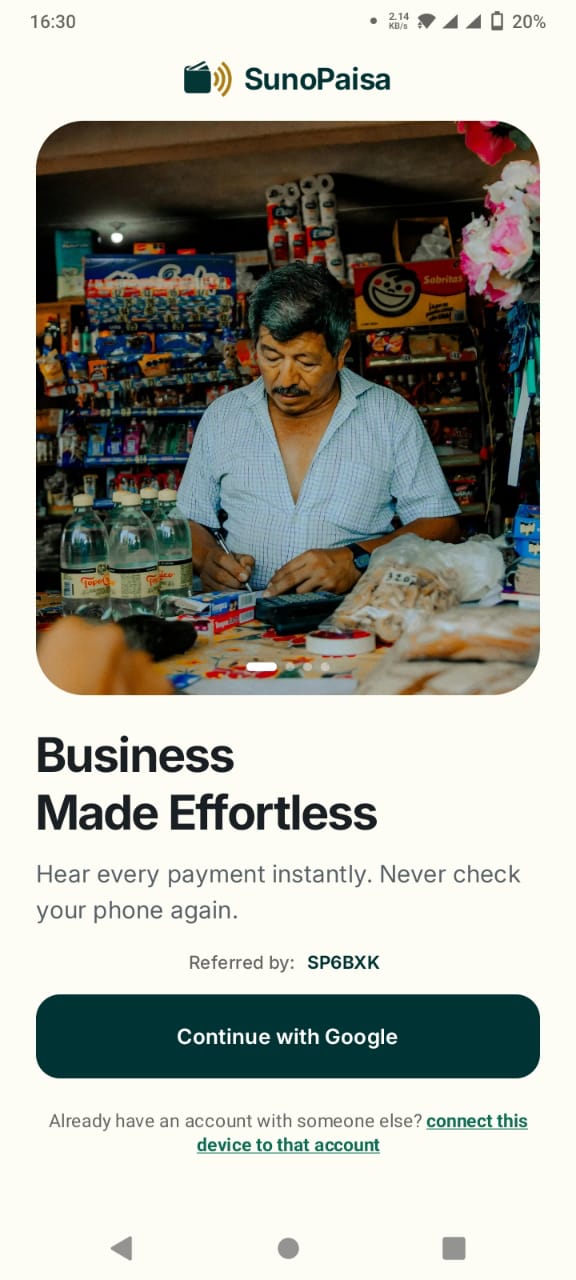
Open the official SunoPaisa Play Store page. Tap Install and open the app after installation. Avoid downloading files from strangers claiming to offer special unlocked versions.
Step 2: Sign in
Follow the sign-in screen and choose your Google account. Use an account you will keep for the shop because purchased Business Mode and account records need to be associated with the correct identity.
No one from support should need your Google password, bank PIN or wallet OTP to explain how to log in.
Step 3: Read the Notification Access screen
Android Notification Access allows a selected app to see notifications from other apps. SunoPaisa needs this permission to detect and announce supported payment notifications. Read the explanation, then use the Android settings flow to grant the permission if you agree.
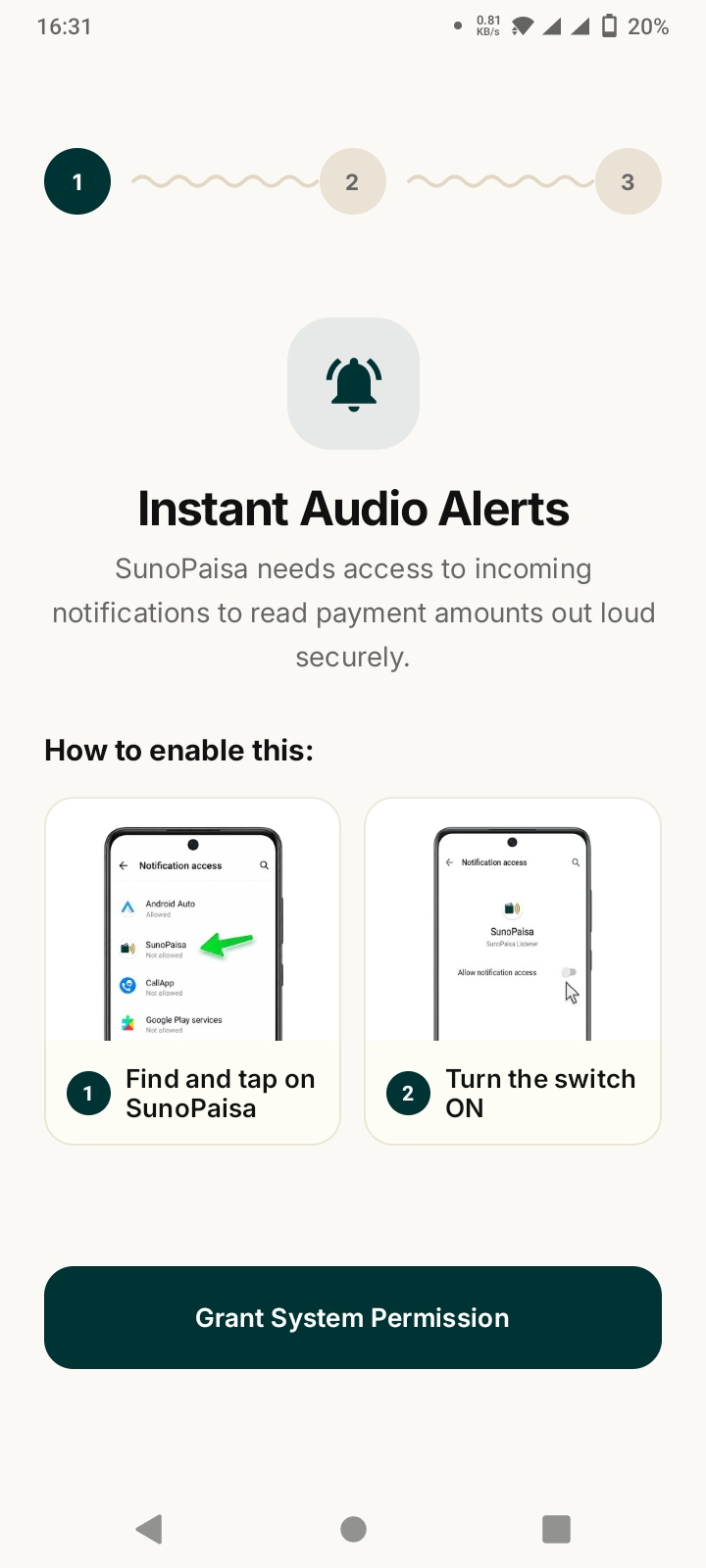
Depending on your phone brand, Android may call this menu Notification Access, Device & App Notifications or another similar name.
Step 4: Choose your payment sources
If you use JazzCash, select the compatible JazzCash source. If you take Easypaisa payments, choose that supported source. For bank notifications, use only the payment apps whose notification formats are supported.
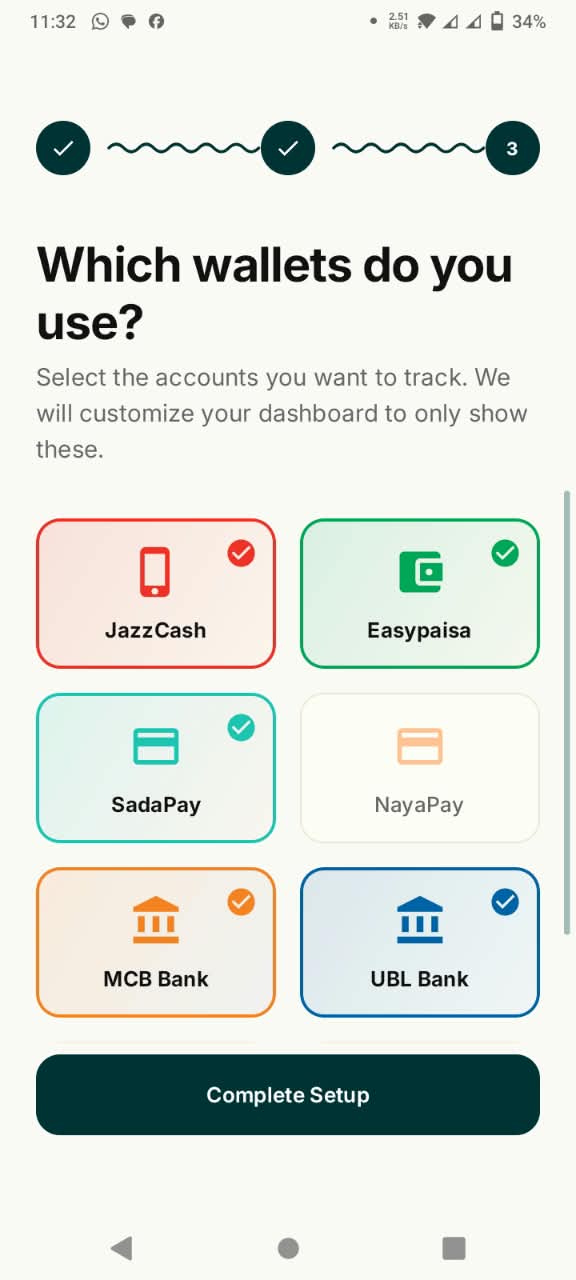
Choosing a payment source does not connect your bank account directly. SunoPaisa reads supported notifications delivered to Android.
Step 5: Check voice settings
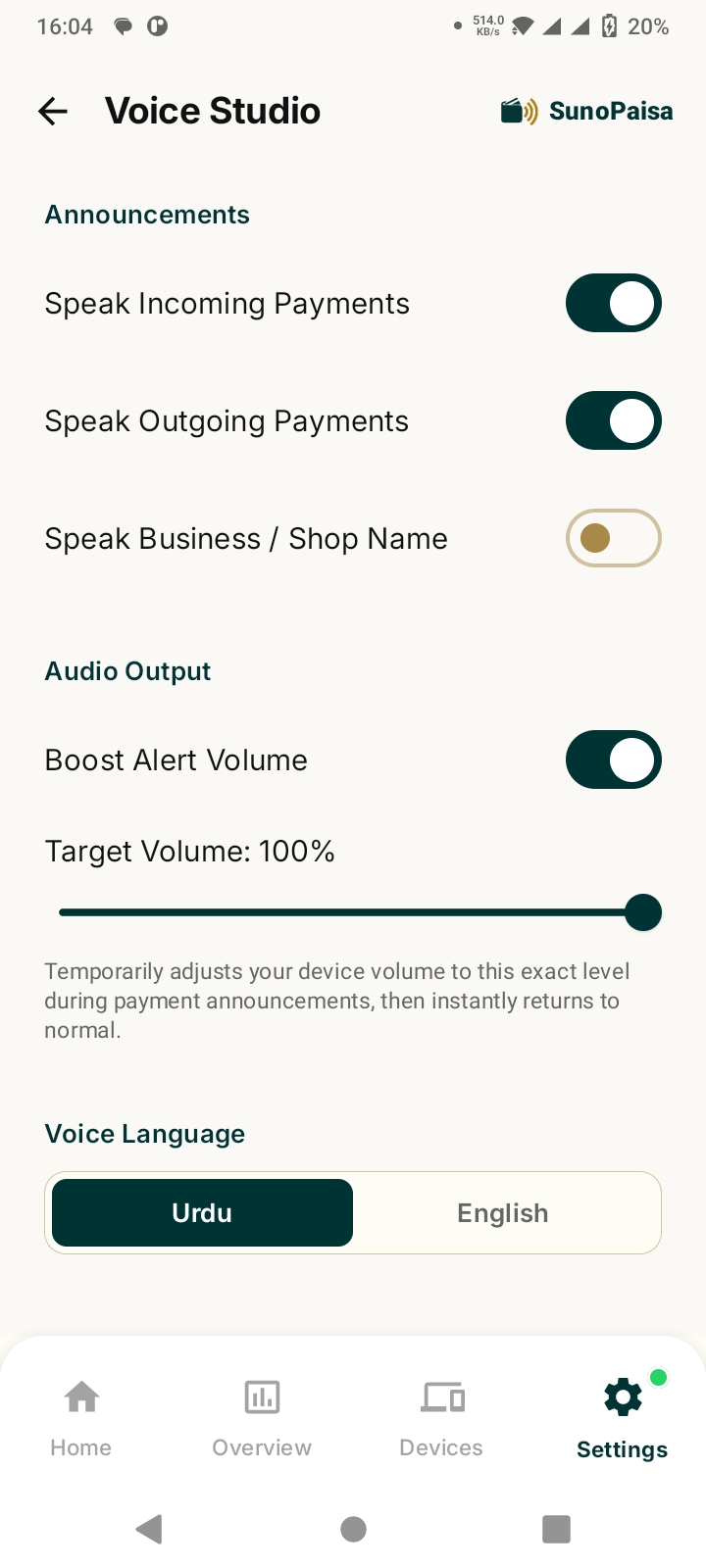
Open the voice settings screen, choose the available voice preferences and make sure the phone audio is not muted. You can adjust the volume while the counter is quiet.
Step 6: Test the first genuine incoming payment alert
A website demo can show you how two phones behave, but it is a sample. The important test is whether your real shop phone receives a recognized notification from your wallet or bank and announces it. Ask a trusted person to make a legitimate small payment if appropriate, then check the official provider record before making any business decision.
If the alert appears but does not speak, follow the troubleshooting checklist.
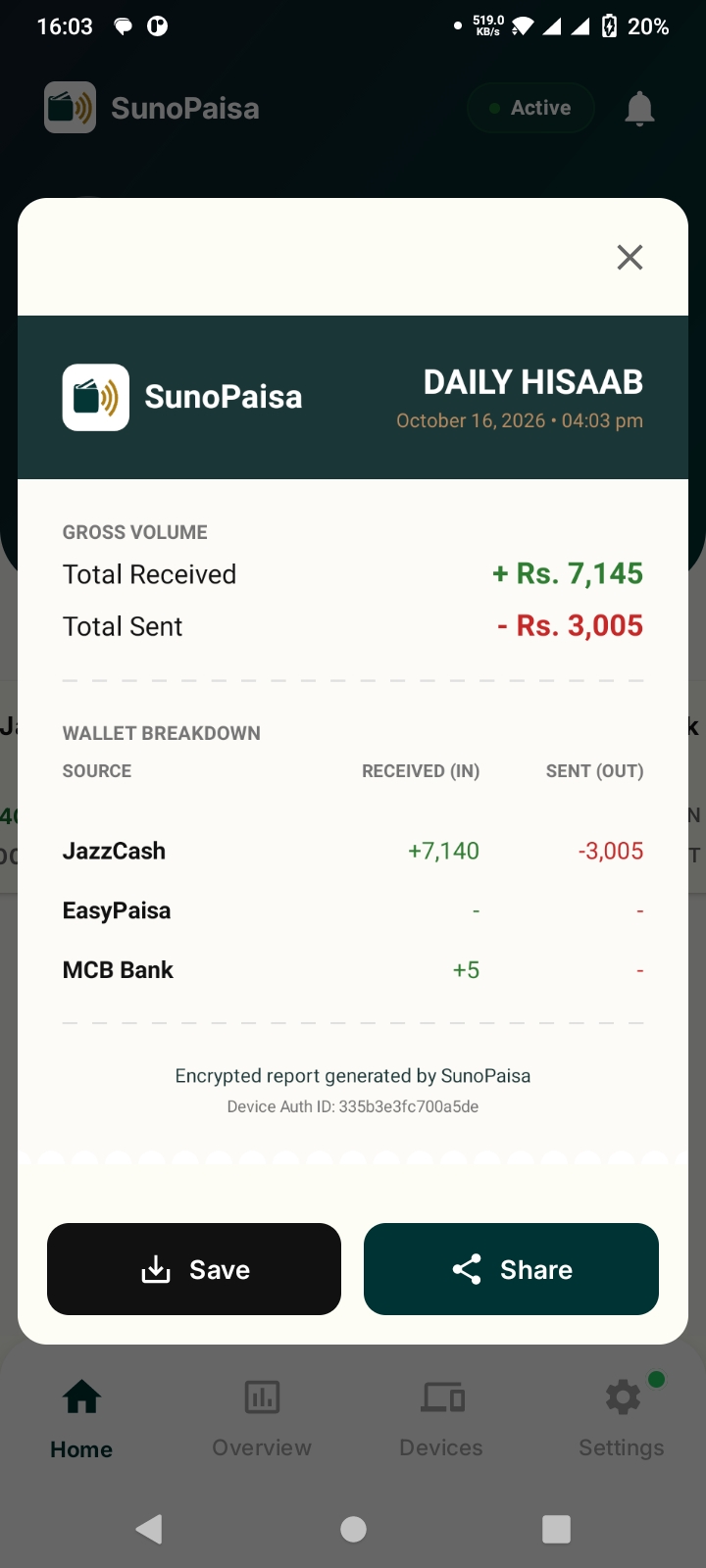
Step 7: Review daily Hisaab
Your dashboard provides a place to review recognized supported transactions. At the end of the shift, compare important totals with the official JazzCash, Easypaisa or banking records.
When should a shop choose Business Mode?
Start with the free 50 monthly spoken alerts. If your shop regularly uses more, Business Mode includes unlimited supported voice announcements and additional merchant features. Do not upgrade solely because a sample video looks attractive; try your own notification flow first.
Frequently asked questions
Is it difficult to make a SunoPaisa account?
No. Install the Android app and follow the available Google sign-in and setup prompts.
Do I need a new JazzCash account?
No. You use the payment services your shop already has; SunoPaisa doesn't open bank accounts.
Why can't the app speak without Notification Access?
The voice feature depends on receiving supported notifications through Android's permission system.
Can I set it up on a shared shop phone?
Yes, where the device and notifications are compatible. Consider access to private notifications and keep the phone protected.
How many free alerts can I try?
50 spoken alerts per month under the free plan.
Can I enable JazzCash and Easypaisa together?
You can select multiple compatible sources available in the app.
Where can I ask for help?
Use the official SunoPaisa contact page. Never disclose PINs or OTPs.
Start today
You now know the path: install, sign in, allow the right notification access, select sources and test an incoming alert. Download SunoPaisa and explore the feature walkthrough when ready.