
A JazzCash customer says, “Bhai payment bhej di.” At a crowded counter you might be packing an order, answering a call or helping the next customer. You want to know when your shop phone receives the payment notification without constantly looking at the screen.
Quick answer: SunoPaisa can announce supported JazzCash payment notifications aloud on Android. Install the app, enable Notification Access, select a compatible JazzCash source and allow a real payment notification to reach the phone. The app speaks the alert; the JazzCash account remains where the money is actually received.
JazzCash payment voice alert: what exactly happens?
Consider a small general store that takes payments throughout the day. A customer transfers money through a supported JazzCash flow. JazzCash produces a notification on the shop's Android phone. With permission and a recognized format, SunoPaisa can identify the incoming payment information and announce the amount.
This is a practical convenience. It is not a direct connection to JazzCash's settlement system and it does not read bank PINs or authorize transactions.
Before you install: three quick checks
First: Are you receiving payment notifications in the official JazzCash app on this phone? If alerts are turned off, a voice announcer has nothing to work with.
Second: Is this the Android phone that will stay at the shop? Owners using a second phone should decide where alerts should be received and where staff need to hear them.
Third: Can you test a genuine compatible payment notification? A sample animation or website demo teaches the concept but cannot verify your particular phone's notification format.
How to make JazzCash payment notifications speak
- Download SunoPaisa from its official Play Store page.
- Sign in and finish the simple onboarding.
- When Android displays the Notification Access step, read the permission information. Enable access for SunoPaisa.
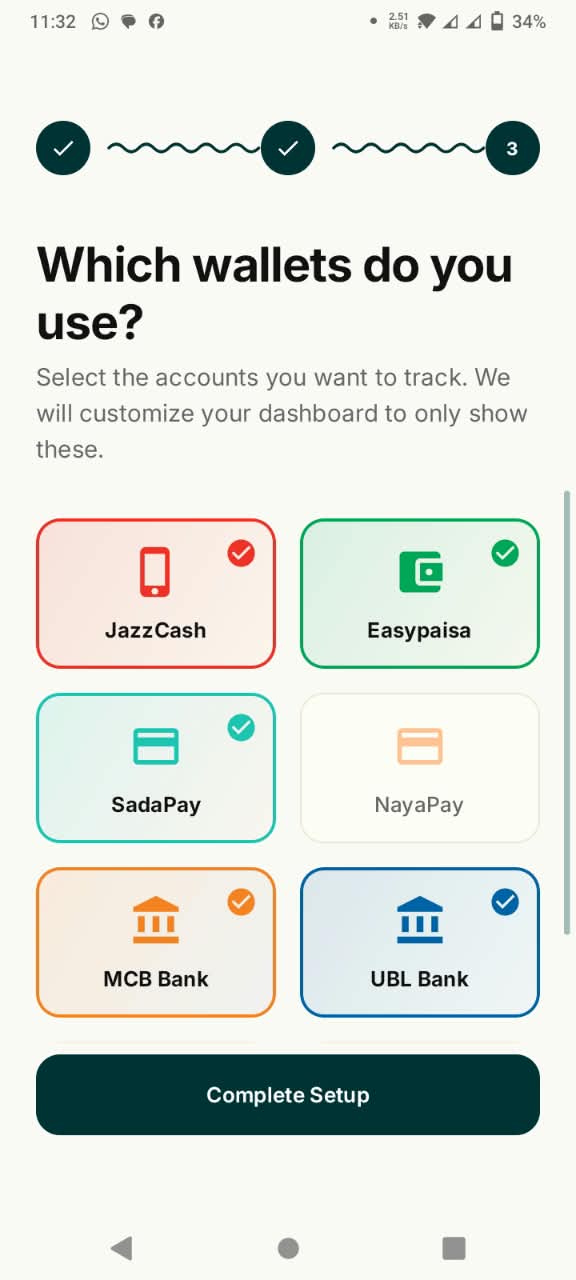
- Open wallet selection and choose the supported JazzCash option relevant to your account.
- Check the phone's media volume and SunoPaisa voice settings.
- Receive a genuine eligible notification and listen for the amount. If necessary, review recent recognized entries in Hisaab.
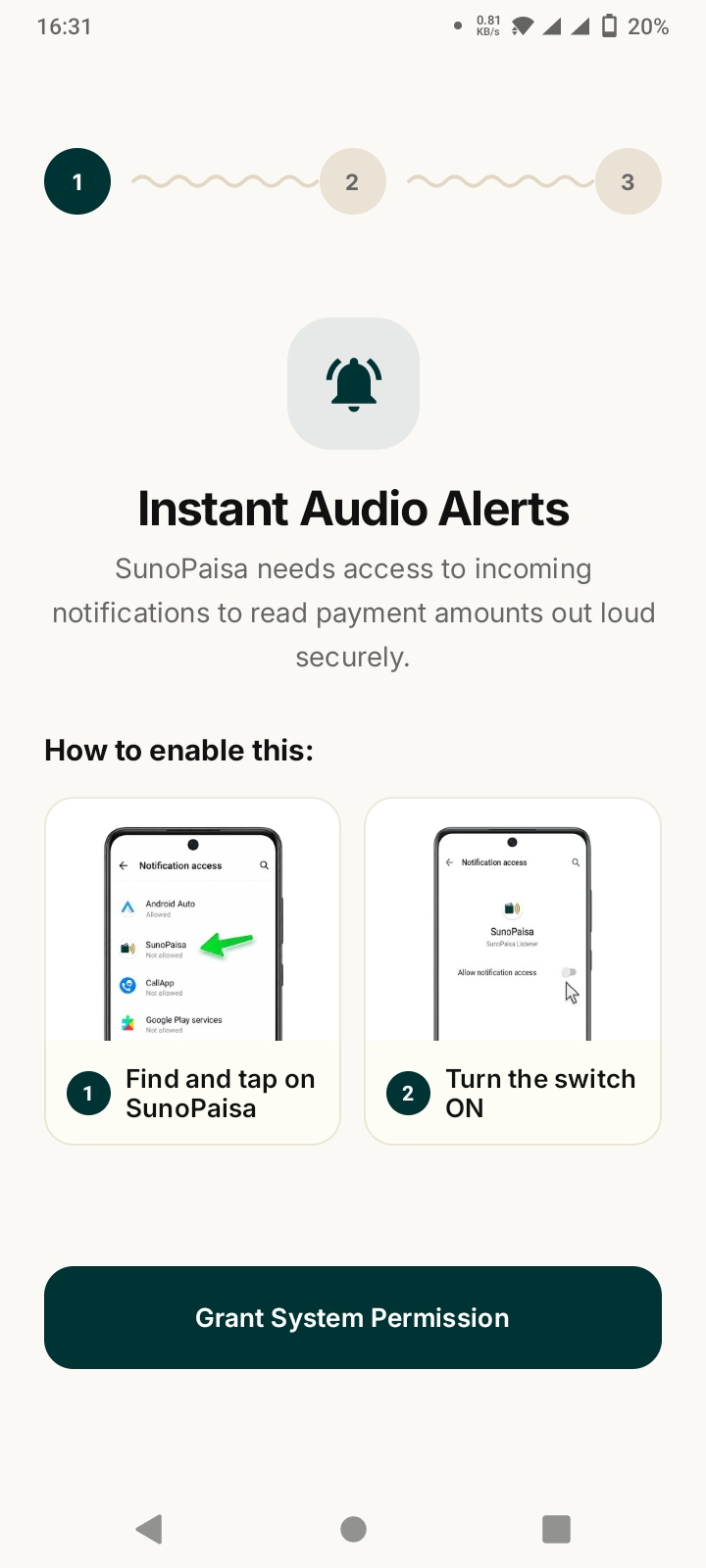
The menu names can vary between Samsung, Xiaomi, Oppo, Vivo and other Android brands. If you don't see the same screen, look for “Notification Access” in your device settings search.
JazzCash Business and personal-wallet notifications
Do not assume that every message from every JazzCash app version is identical. Notification content, account type and app updates can change how an alert is worded. SunoPaisa recognizes supported notification formats rather than every notification with the word JazzCash.
If a shop's personal or business wallet emits a recognized incoming-payment notification, the app can work with it. Try the real account type your business uses, not a different test account.
Why the merchant still needs the official JazzCash app
A voice alert makes information easier to notice at a busy counter. The official JazzCash app remains the place to check settled or disputed transfers. A screenshot shown by a customer is also not enough by itself to prove receipt.
The simple routine is: hear the notification, check your daily records, and verify valuable or suspicious transactions in your official wallet before delivering goods.
What if the JazzCash notification appears but no voice plays?
Work through these checks in order:
- Confirm SunoPaisa Notification Access remains enabled.
- Verify that the selected JazzCash source is turned on.
- Check media volume, silent settings and voice preferences.
- Look for aggressive battery restrictions that stop background tasks.
- Check whether the monthly free quota has been used.
- Review the actual notification wording; some formats may not be recognized.
Our full Android payment-voice troubleshooting guide covers these checks without jargon.
Do you have to pay for JazzCash voice alerts?
Not to try SunoPaisa. 50 spoken alerts are free each month. Shops handling more notifications can review Business Mode. Current website prices are Rs. 300 monthly, Rs. 1,500 for six months, Rs. 3,000 yearly or Rs. 10,000 lifetime. Features and billing details are shown on the official Business Mode page.
A plan increases the available voice quota; it does not change what JazzCash has transmitted to your phone.
Frequently asked questions
What is a JazzCash payment bolnay wali app?
It is a phone application that can speak information in supported incoming JazzCash notifications. SunoPaisa is an example for Android shop phones.
Does SunoPaisa send money through JazzCash?
No. JazzCash processes the payment in the user's normal account. SunoPaisa reports compatible notifications.
Can I use it on a mobile recharge counter?
Yes, it can be useful for a shop taking compatible JazzCash payments while selling easyload or accessories. Try the real workflow first.
Do I need internet for a JazzCash voice announcement?
Your wallet or bank still needs to deliver its notification. A phone-based announcer cannot promise an alert if the official service never sends one to the phone.
Is Notification Access necessary?
For the notification-based voice feature, yes. The permission lets Android share the selected notification content with SunoPaisa.
Does it read my JazzCash password or OTP?
The app does not need a JazzCash password or transaction OTP for its notification-announcement feature. Never send such details to anyone claiming to offer setup help.
What if I use Easypaisa as well?
Select compatible sources for both services where available. See the Easypaisa guide.
Start with one genuine shop payment
Use the three-step setup walkthrough, test a real incoming JazzCash notification and decide whether the voice alerts help your staff. Then explore Business Mode only if your shop benefits from more announcements.